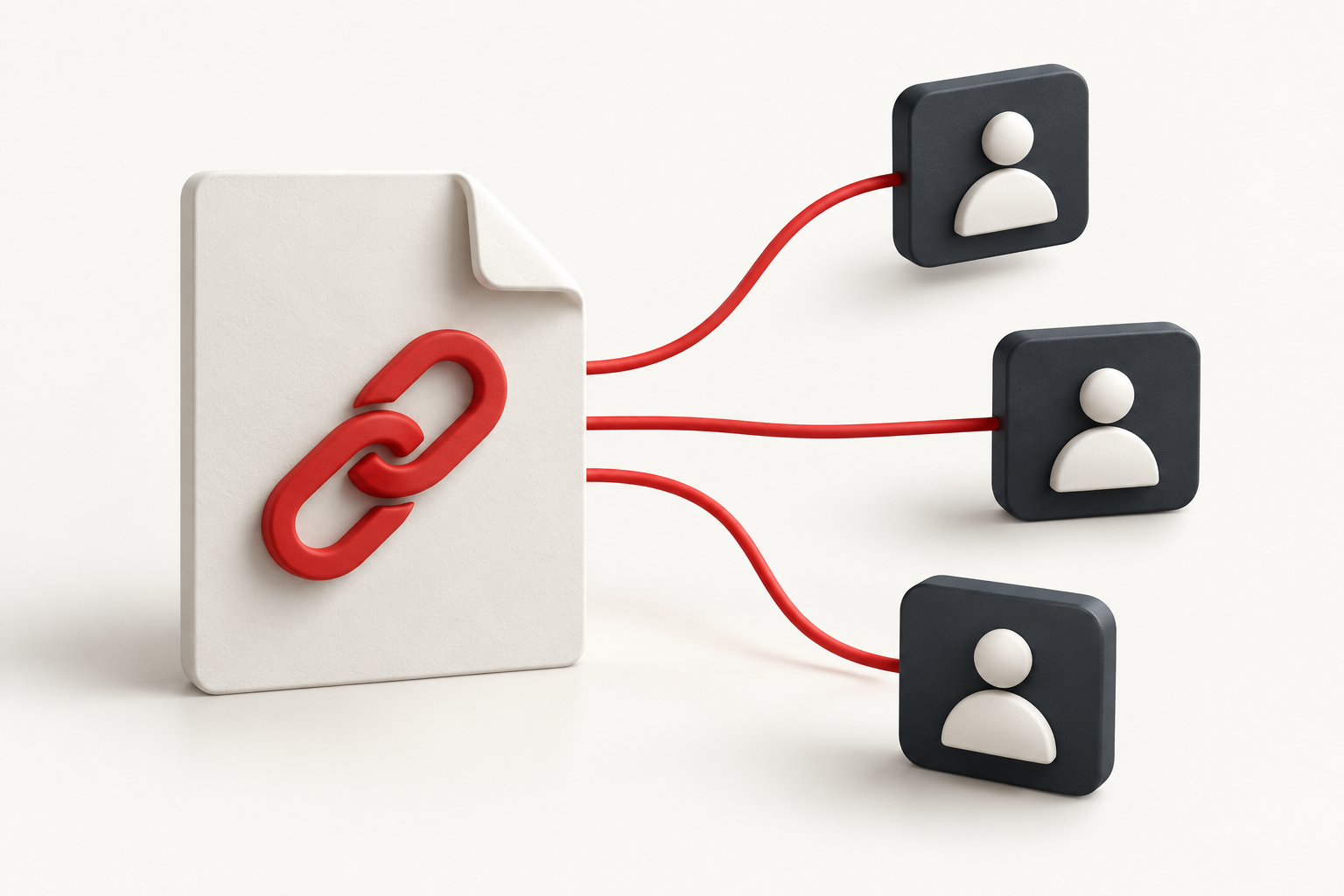
A clear path for every recipient
From your PDF
to approved access.
Send a personal PDF link, verify the recipient’s email and record document access through a clear sequence.
01
Upload and identify your PDF
An administrator uploads a PDF, gives it a clear title and optionally adds a case number. Uploads made through the plugin are encrypted and saved in the installation’s pdf folder. Uploading is separate from the public Contact form.
02
Add recipients and choose their access
Add the approved email address for each recipient. Choose an access mode and expiration, then create their personal link. Adding a recipient does not send an email. Preview invitation lets you inspect the actual message before sending it.
03
Send one recipient their invitation
Click Email invitation under the intended recipient. That person receives their own link, access-level description and expiration. The PDF itself is not attached. Repeat this for each intended recipient; there is no need to forward another person’s invitation.
04
Verify access by email
The recipient opens the link and selects Send verification code. The eight-digit code goes only to the address assigned to that link. The 10-minute clock starts at this request, not when the invitation was sent. Codes are single-use, with a five-attempt limit.
05
Acknowledge the sharing restriction
After verification, the recipient checks the initially unchecked acknowledgment and selects Agree and continue. The exact wording, document, verified email and acceptance time are recorded. A later wording change requires a new acknowledgment.
06
Open, download or print within the assigned access
The recipient sees the available controls for their permission. A one-time download has no preview or portal Print button, and is consumed when requested. An interrupted one-time transfer requires the sender to issue a fresh link. Other permissions remain subject to expiration and revocation.
Choose the right PDF access level
View and download permits repeated portal access until expiration or revocation. Preview only opens the viewer without the portal download button; it does not block the browser’s own save or print features. One-time download permits one download request. Copies already saved outside the portal can be reopened later.
Review every recorded document action
Open the collapsible Recipients and activity section to see dated events beneath each email. Repeated requests create separate lines, with older entries available through pagination. Email-view events can be triggered automatically or missed when images are blocked or cached. PDF preview, download and Print button records describe requests observed by the software.
Edit permissions or revoke a link
An administrator can change the access level without replacing the link or its expiration. Existing sessions and codes are invalidated after the change. Editing access sends no new invitation automatically. A used one-time download is not reset by switching modes; create a fresh recipient link if another download should be allowed.
If you cannot get a verification code
Check the inbox and spam folder for Your MyPDFLink verification code. Keep the original document page open while entering the code. If the approved email is incorrect, the link has expired or access is revoked, contact the sender. The website Contact form is for general questions, not private document links or codes.
Understand the security controls and limitations or ask PageGravy about setting up secure PDF sharing.
Ready to share PDFs with more control?
Tell PageGravy about your recipients, documents and delivery process. We can discuss whether MyPDFLink fits your needs.