Private document sharing by PageGravy
Secure PDF Sharing
with Verified Email Access
Control who views your PDF with individual recipient links, email verification, expiration dates and document activity tracking—without sending the PDF as an email attachment.
See how verified PDF access works Talk to PageGravy
Received a MyPDFLink invitation?
Open the personal document link in your invitation, request a verification code and check your approved email inbox. This homepage is not a document directory. If you need access, contact the sender.
Share PDFs securely without sending email attachments
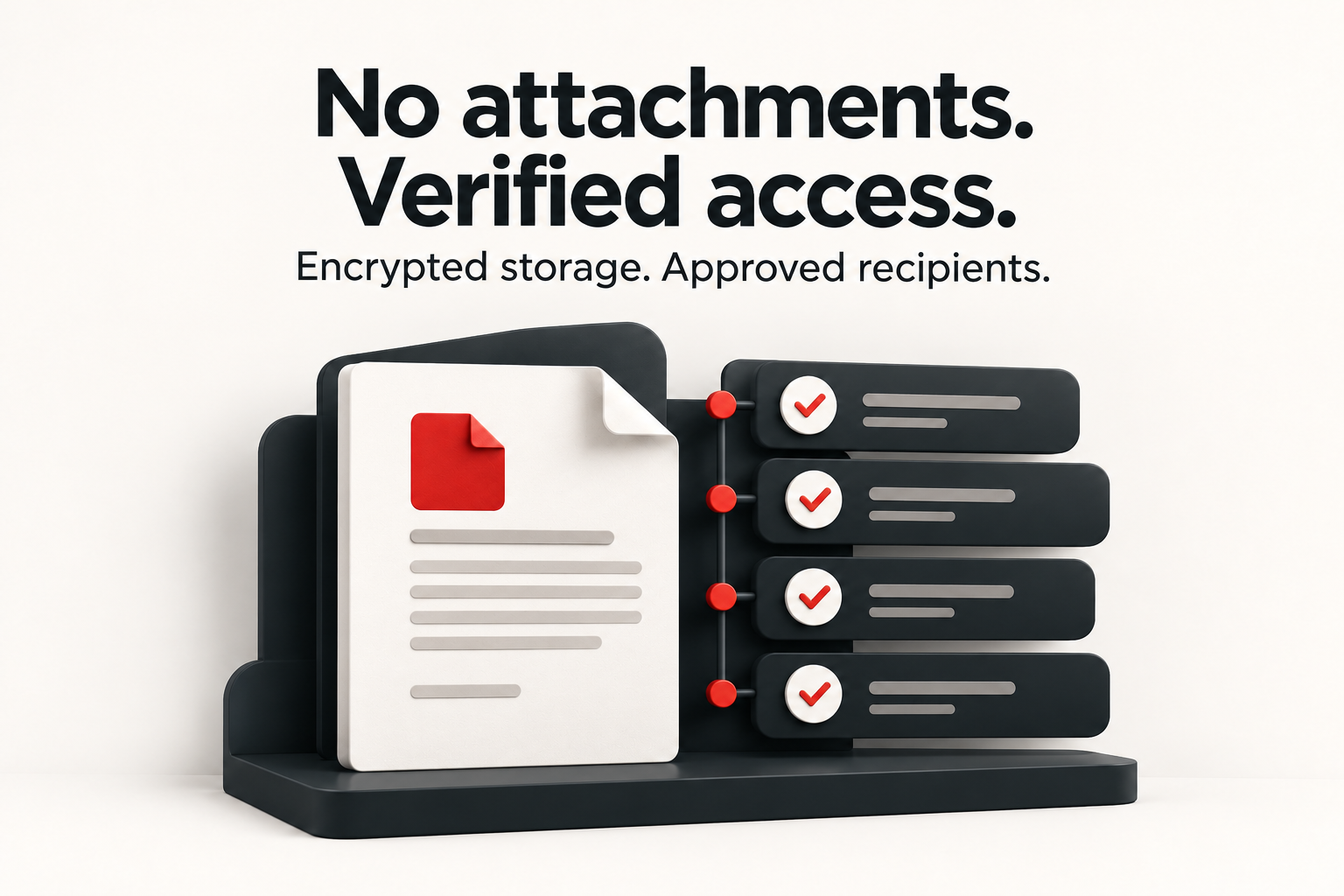
Emailing a PDF creates another copy in someone’s inbox. MyPDFLink gives each approved recipient a personal link instead. The PDF remains encrypted on the installation’s server until an authorized browser requests it. The recipient verifies access through their approved email and acknowledges the sharing restriction before opening the document.
Secure PDF sharing is about choosing who can access a document, setting clear permissions and keeping a useful activity history. MyPDFLink combines those controls in a WordPress-based workflow for private document delivery. It does not make downloaded copies impossible to share.
Verified email access
A personal recipient link is paired with the approved email address. An eight-digit code is sent to that mailbox when requested. The code lasts 10 minutes from the request; a verified session lasts up to 15 minutes and never extends the link’s expiration.
Individual PDF sharing links
Create a separate link for each recipient. Preview the invitation, then send it to that person. The email states the document title, optional case number, access level and exact expiration. Recipients do not see a list of other recipients’ email addresses.
Access levels and expiration
Choose Preview only, View and download, or One-time download. Expiring links limit future portal access. A one-time permission is used when the download is requested, not when the invitation is opened.
A required sharing acknowledgment
Before accessing the PDF, recipients check an acknowledgment that they have no permission to email, forward, upload or otherwise share it. The system records the document, verified email, time and wording accepted.
Recipient-by-recipient activity
Expand Recipients and activity to review separate dated entries for link visits, verification, acknowledgment, PDF preview responses, download requests and Print button clicks. Email-view signals are estimates, not proof that an email was read.
Change or revoke future access
Change a recipient’s access level while retaining their link, or revoke a recipient or the whole document. Changes apply to subsequent requests. Revocation cannot erase a copy that was already downloaded.
Private PDF sharing for client and business documents
Use a controlled delivery process for client PDFs, financial records, reports, agreements or review materials. For example, an administrator can create a separate invitation for each authorized reviewer of a tax document, include a case number and set the appropriate access level. The sender must confirm that this workflow meets the recipient’s delivery requirements.
The current MyPDFLink Simple edition is installed on WordPress. Administrators upload and manage documents; it is not a public client-upload service. Recipients use a browser and their email inbox without buying an account, installing an app or receiving a text message. Follow the full PDF sharing process.
Understand what verified access does—and does not—prove
A successful code confirms access to the approved mailbox, not a person’s legal identity. Preview-only mode hides the portal download button but still sends PDF bytes to the browser, where saving or printing may be possible. The Print button records a request, not completed paper printing. Read about PDF security and privacy controls before sending sensitive information.
Questions about secure PDF sharing
How do recipients access a PDF?
They open their personal invitation link, request an emailed verification code, enter the code and accept the sharing restriction. The document controls shown then depend on the permission you assigned.
Is the PDF attached to the invitation?
No. The invitation contains an access link and document information. The PDF is delivered from MyPDFLink to the browser after the required access checks. Email providers still process the invitation and code messages.
What if someone forwards the invitation?
The code is sent only to the email assigned to that recipient link. Forwarding the link alone does not authorize another email address. A recipient who also shares codes or downloaded copies can still disclose information outside the portal.
Can I see who opened the PDF?
Activity identifies the verified email associated with the request and its time. It does not prove who physically used the computer, that every page was read or that a complete download reached the device.
Does MyPDFLink guarantee compliance or prevent copying?
No. Suitability depends on the document, recipient requirements and the security of the installation. MyPDFLink does not claim a compliance certification or complete copy protection.
Ready to share PDFs with more control?
Tell PageGravy about your recipients, documents and delivery process. We can discuss whether MyPDFLink fits your needs.